Unstable SMP FFA Settings, Sensitivity and Damage Tilt
Last updated:
Adjust your camera response and display effects in Unstable SMP FFA to make turning and tracking opponents more comfortable.
Open the Settings Menu
Move away from immediate danger, then open Game Menu > Options. You can still take damage while the menu is open.
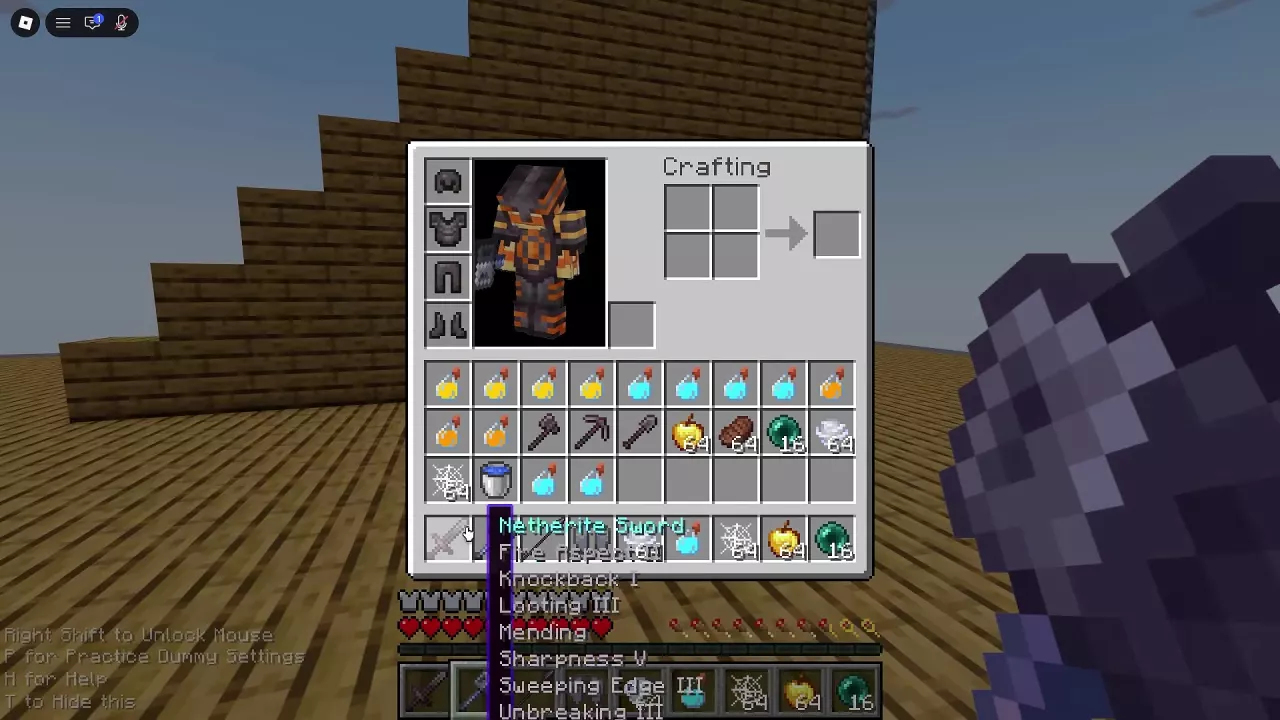
Options includes an FOV slider and entries for Skin Customization, Video Settings, Controls, Mouse Settings, Music & Sounds, Chat Settings, and Inventory Layout. Use Done to return through the menus, then select Back to Game.
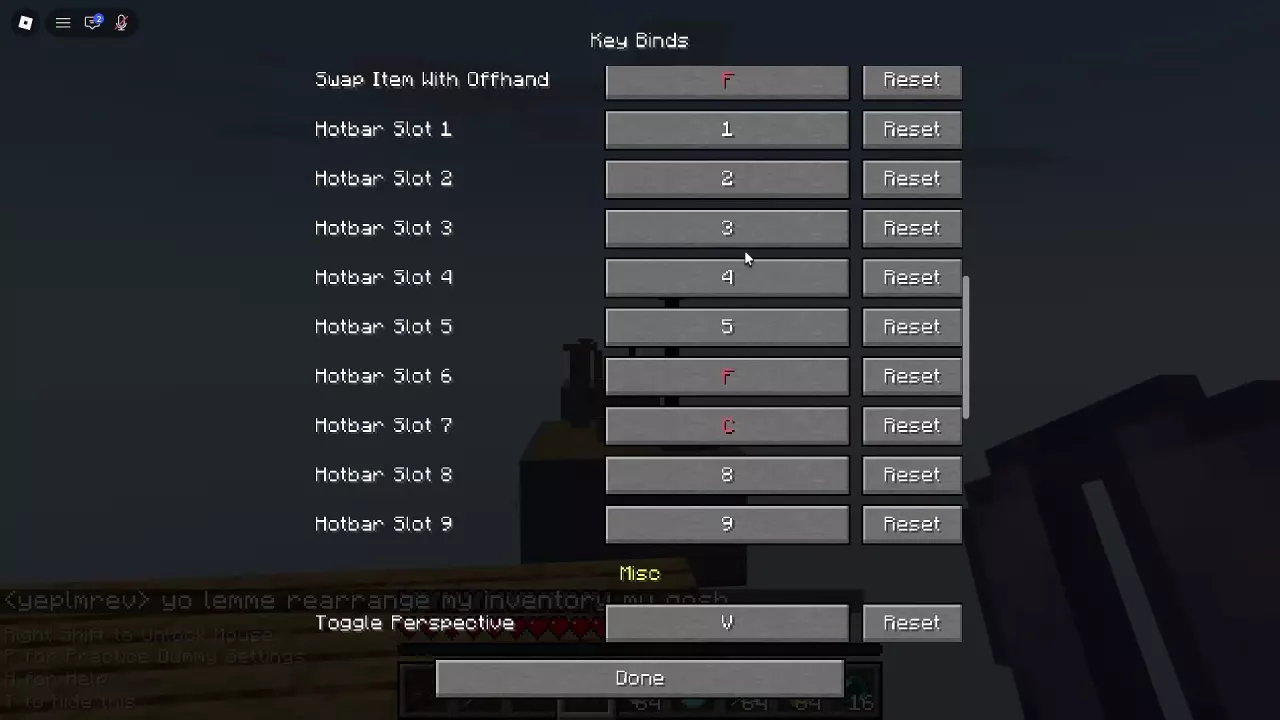
For keybindings and cursor controls, see the PC controls guide.
Adjust Camera Sensitivity
Camera Sensitivity is in Roblox's settings, separate from the game's Options menu.
- Open Roblox Settings > View & Controls.
- Adjust Camera Sensitivity with the minus or plus button, or use the slider.
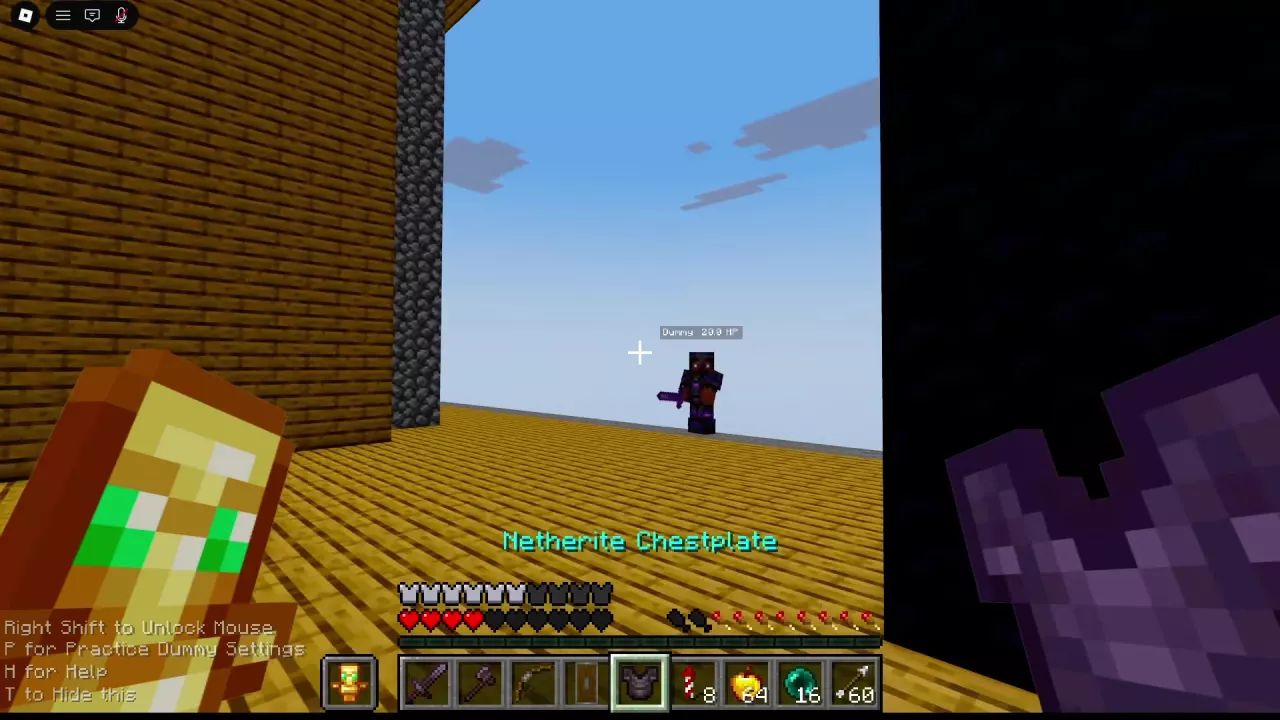
- Return to the game and practice turning toward the Dummy and tracking it at close range.
- Adjust again until you can turn quickly without losing control of your aim.
A higher setting can help you face an attacker behind you faster, but lower it if you consistently turn past your target. Use the Practice Dummy guide to set up a training session.
Turn Off Damage Tilt and FOV Effects
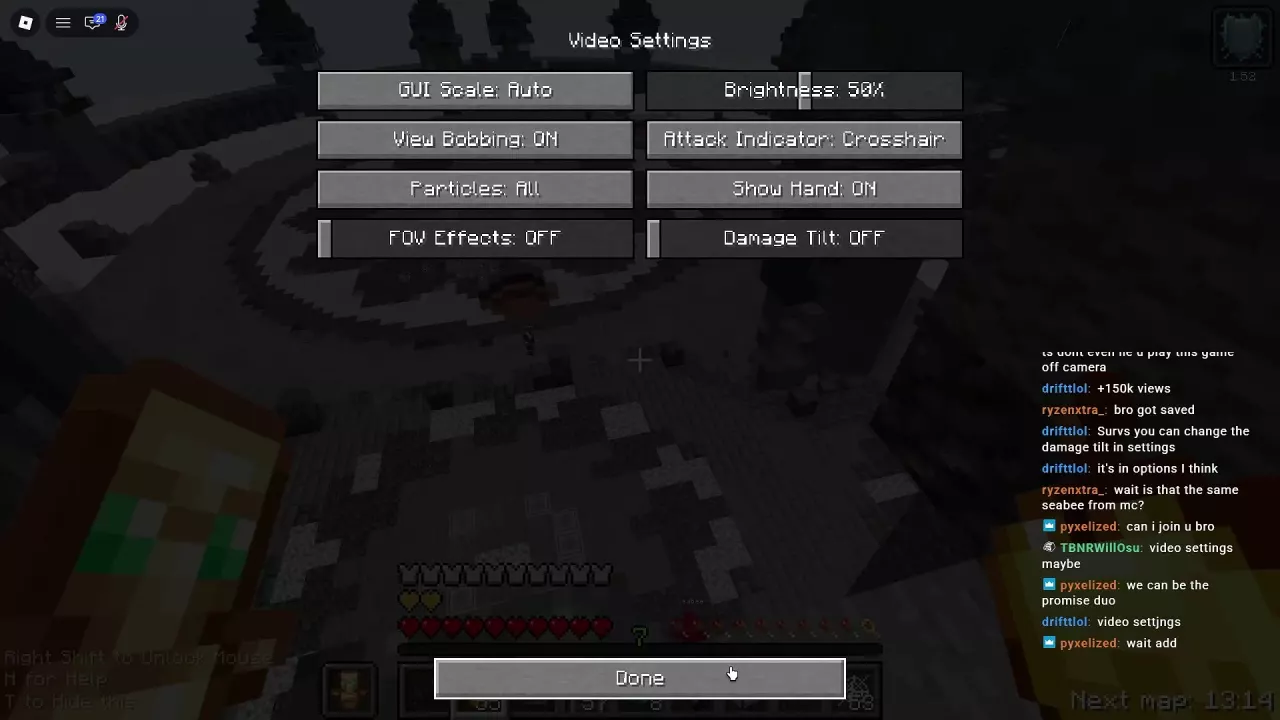
- Open Game Menu > Options > Video Settings.
- Set Damage Tilt to OFF to remove the damage-tilt effect.
- Set FOV Effects to OFF if you also want to disable dynamic FOV effects. The two controls are independent.
- Select Done to return through the menus, then choose Back to Game.
You can adjust Brightness separately without changing either effect.
Other Display Options and Large Battles
Video Settings also includes GUI Scale, Brightness, View Bobbing, Attack Indicator, Particles, and Show Hand. Available selections include Auto for GUI Scale, Crosshair for Attack Indicator, All for Particles, and ON for View Bobbing and Show Hand. Adjust these separately to suit your view.
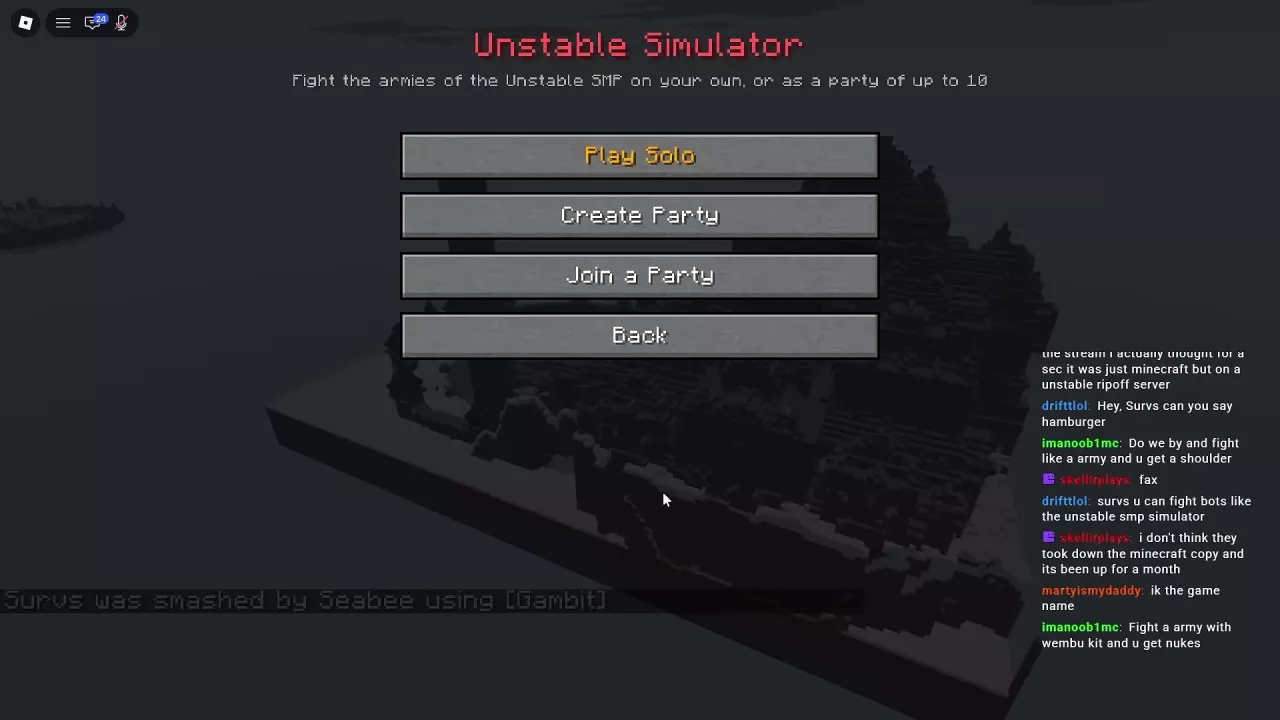
Simulator battles with more than 50 soldiers can affect performance. Consider a smaller battle if a large army makes play difficult; the Simulator guide covers battle setup.