Default Movement and Combat Keys
These are the default PC bindings. Your keys can differ if you have changed them in Controls.
| Key | Action |
|---|---|
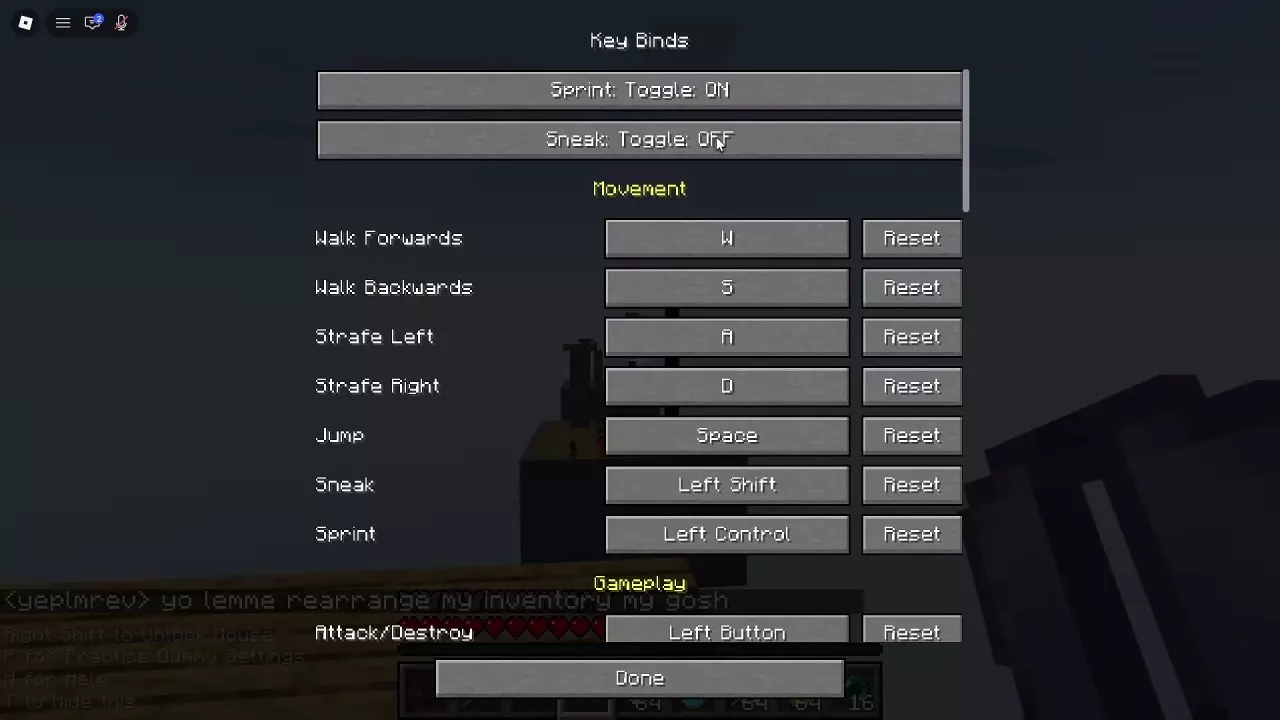
| W / S | Move forward / backward |
| A / D | Strafe left / right |
| Space | Jump |
| Left Shift | Sneak |
| Left Control | Sprint |
| Left mouse button | Attack or destroy |
| Right mouse button | Use an item or place a block |
| E | Open or close inventory |
| Q | Drop the selected item |
| F | Swap the selected item with the offhand |
| 1–9 | Select the corresponding hotbar slot |
For arranging items and managing your offhand, see the inventory and hotbar guide.
Camera, Menus and Cursor Controls
| Key | Action |
|---|---|
| V | Toggle perspective |
| C | Zoom |
| G | Show hitboxes |
| F1 | Hide the HUD |
| Right Shift | Release the mouse cursor |
| H | Open or close Controls help |
| T | Hide help hints |
| Tab | View the player list |
| Enter | Open chat |
| Slash (/) | Open commands |
| M | Open the main menu |
| P | Open the Practice Dummy panel |
| B | Open the emote wheel |
| Y / N | Accept / reject a duel request |
On a controller, press D-pad Down to release the cursor for menu interaction. Unstable SMP FFA also supports play on phones.
Use Practice Dummy to get comfortable with your controls, or see the duels guide for managing requests.
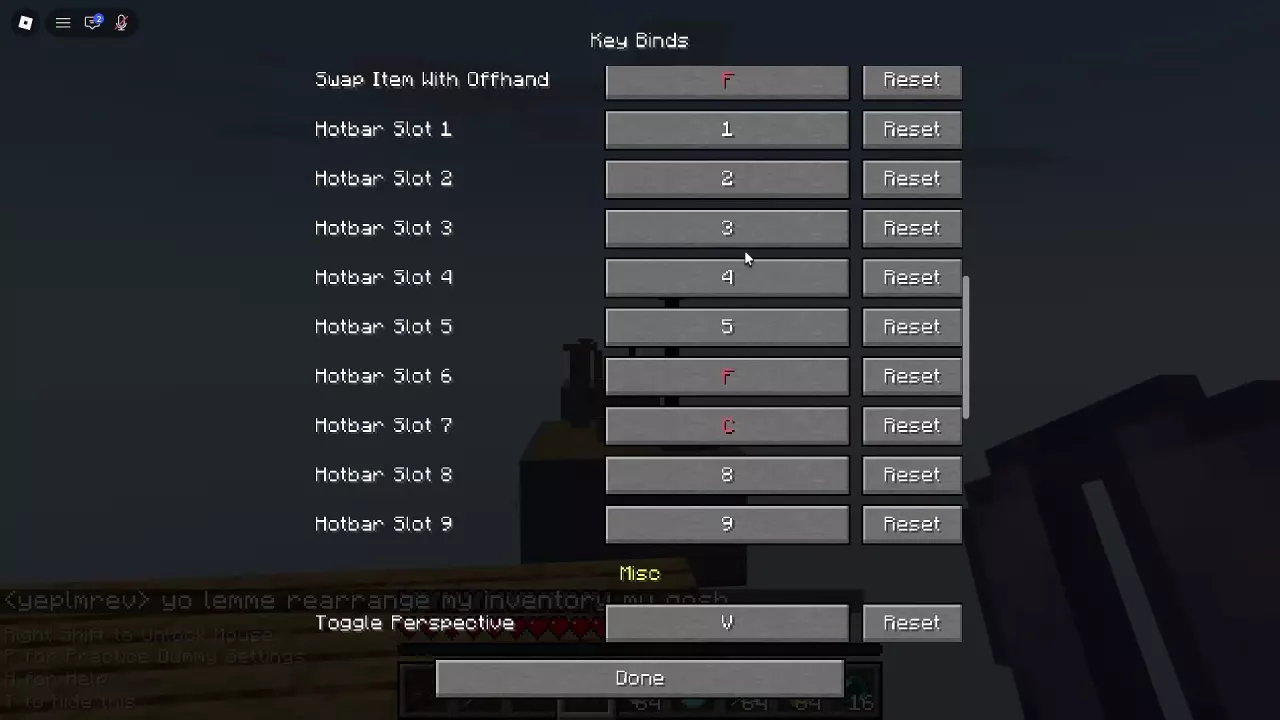
Change an Action or Hotbar Binding
- Open Game Menu and select Options.
- Select Controls to open Key Binds.
- Click the current key beside the action you want to change, then press the new key. Scroll down to find Inventory and Hotbar Slot bindings.
- Select Done when finished. To restore an individual binding, use its Reset button.
For example, you can assign F to Hotbar Slot 6 and C to Slot 7 as personal bindings. Both keys already have default uses, so consider the conflicts before keeping them.
Handle Duplicate Keys and Toggle Sprint
A duplicate binding appears in red. For example, assigning F to Hotbar Slot 6 while Swap Item With Offhand still uses F makes both F entries red. Assigning C to Slot 7 also overlaps with the default zoom key. Choose different keys for actions you want to control separately, or use Reset beside an action to restore its binding.
At the top of Key Binds, set Sprint: Toggle to ON to sprint without holding the sprint key. Sneak has its own Toggle setting, so you can choose its behavior separately.