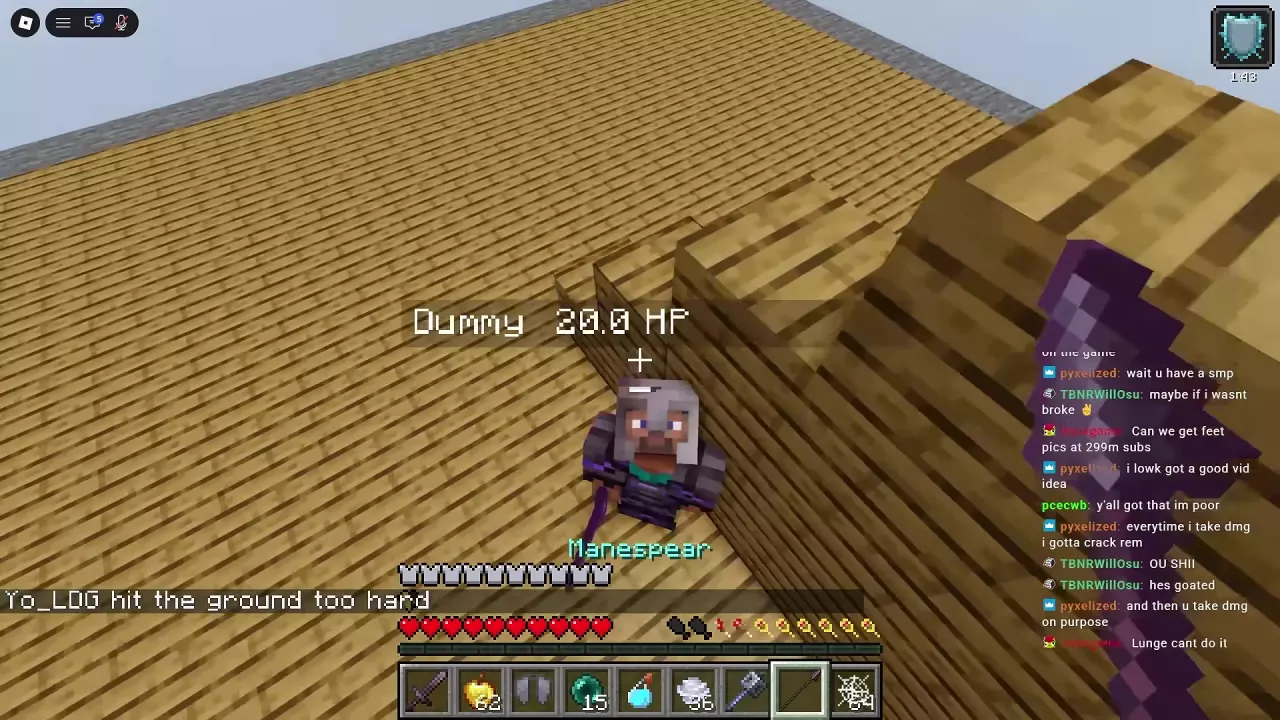
Unstable SMP FFA Inventory, Hotbar and Offhand Guide
Last updated:
Arrange your Unstable SMP FFA inventory around the items you need next, from weapons and potions to a spare totem.
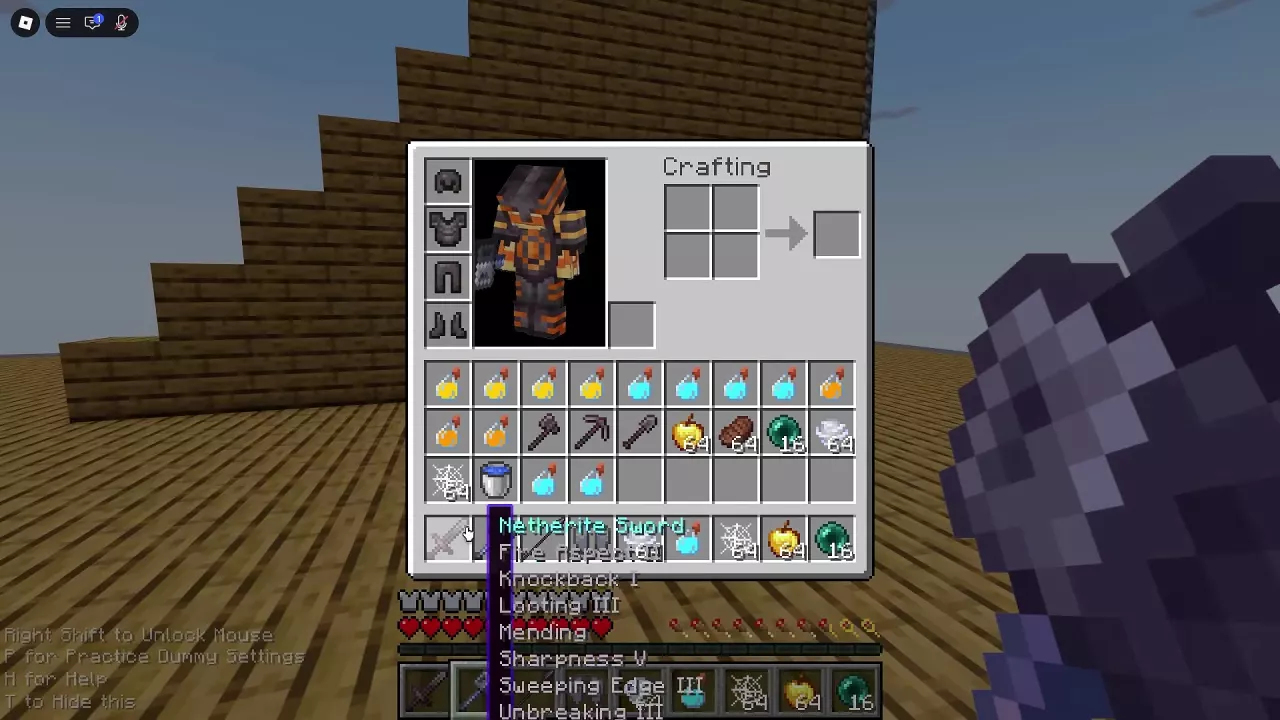
Open Your Inventory and Find the Slots
Press E to open or close your inventory. The four slots beside your character are for your helmet, chestplate, leggings and boots. The offhand slot is near the lower-right side of the character preview.
Below the preview are storage slots and a separate row of nine hotbar slots. Hover over an item to read its name and available tooltip details. The upper-right area contains a 2×2 Crafting grid and an output slot.
Arrange Your Hotbar for Combat
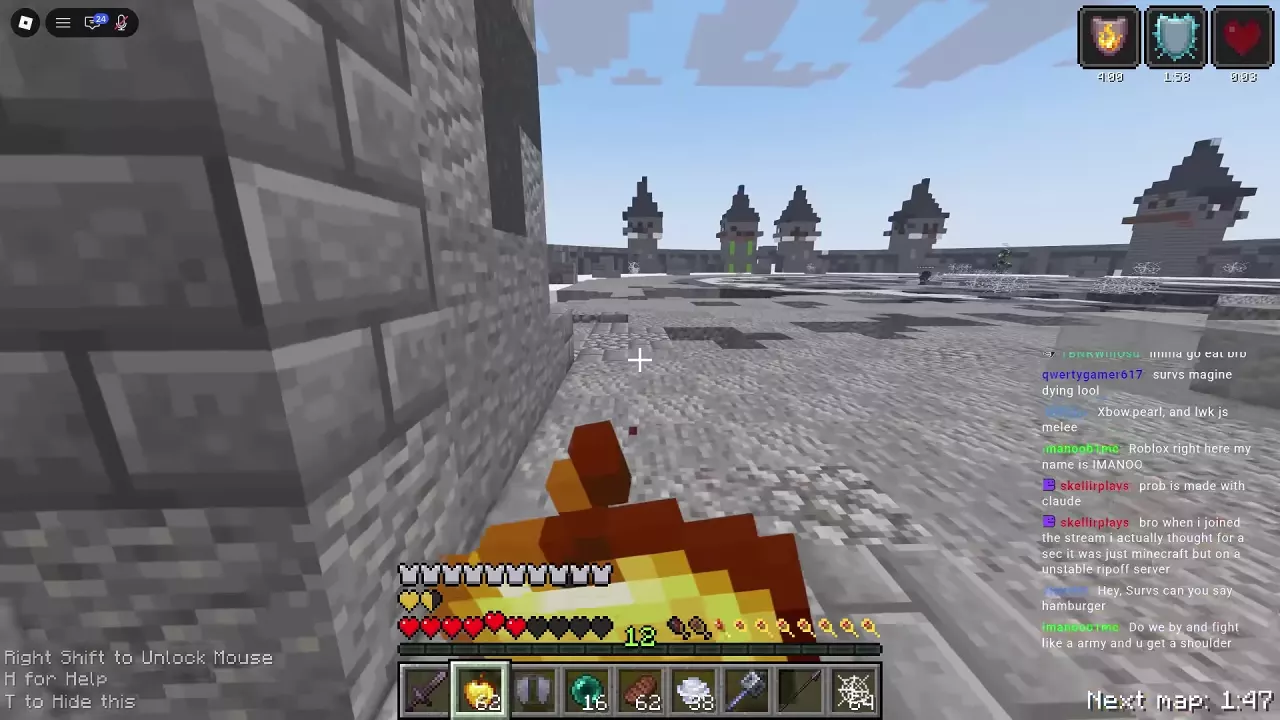
- Open your inventory and put your main weapon in a slot you can reach comfortably. Swap the positions of your Netherite Sword and Manespear if that makes switching between them easier.
- Place movement and recovery supplies, such as an Ender Pearl and Golden Apple, where you can select them quickly.
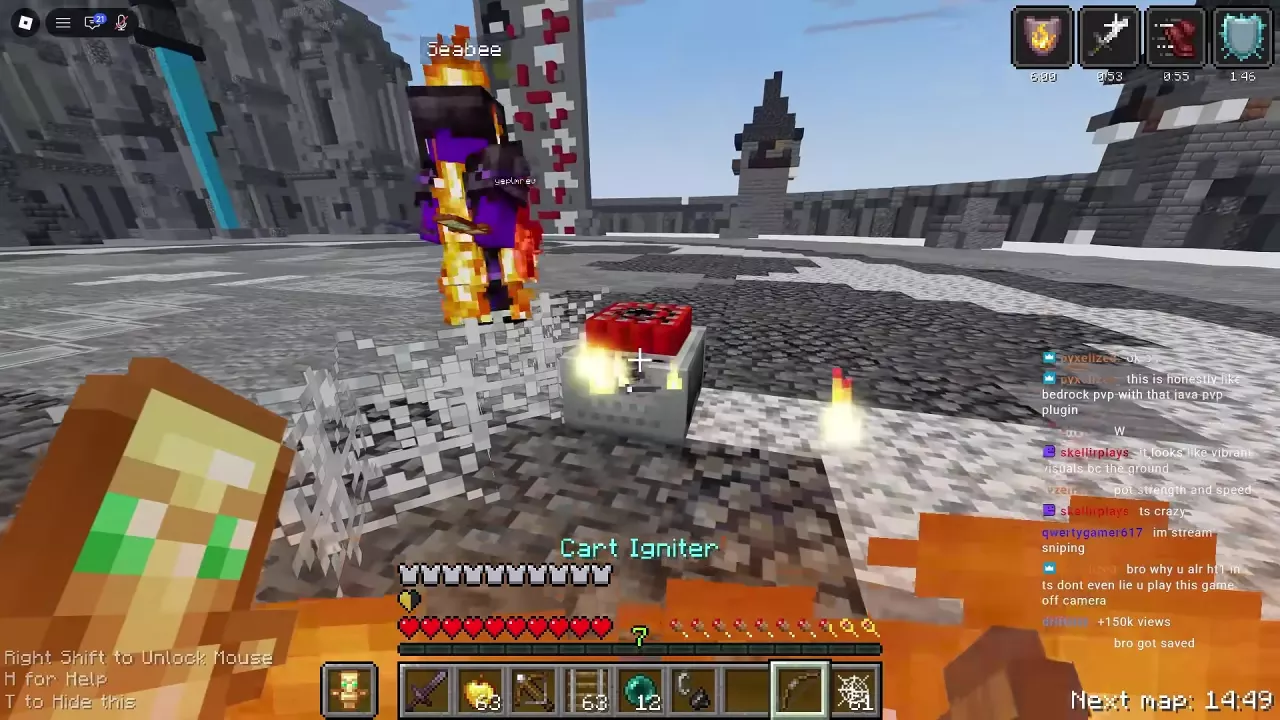
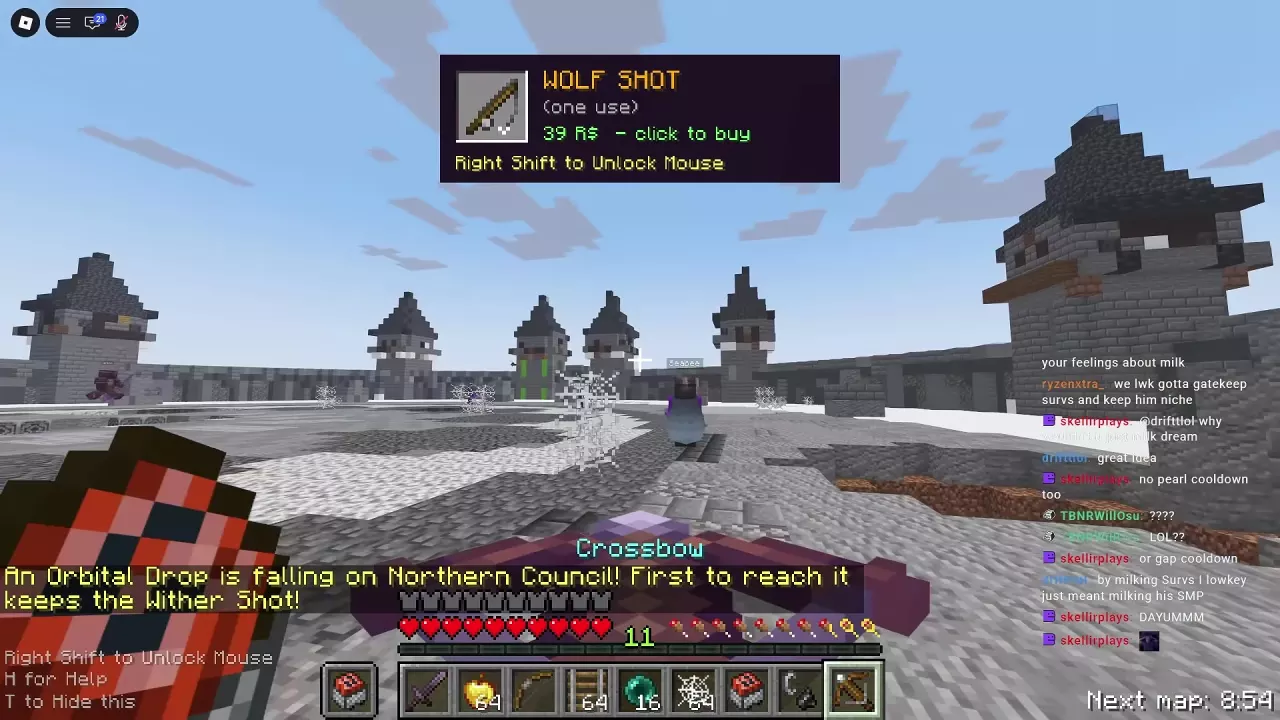
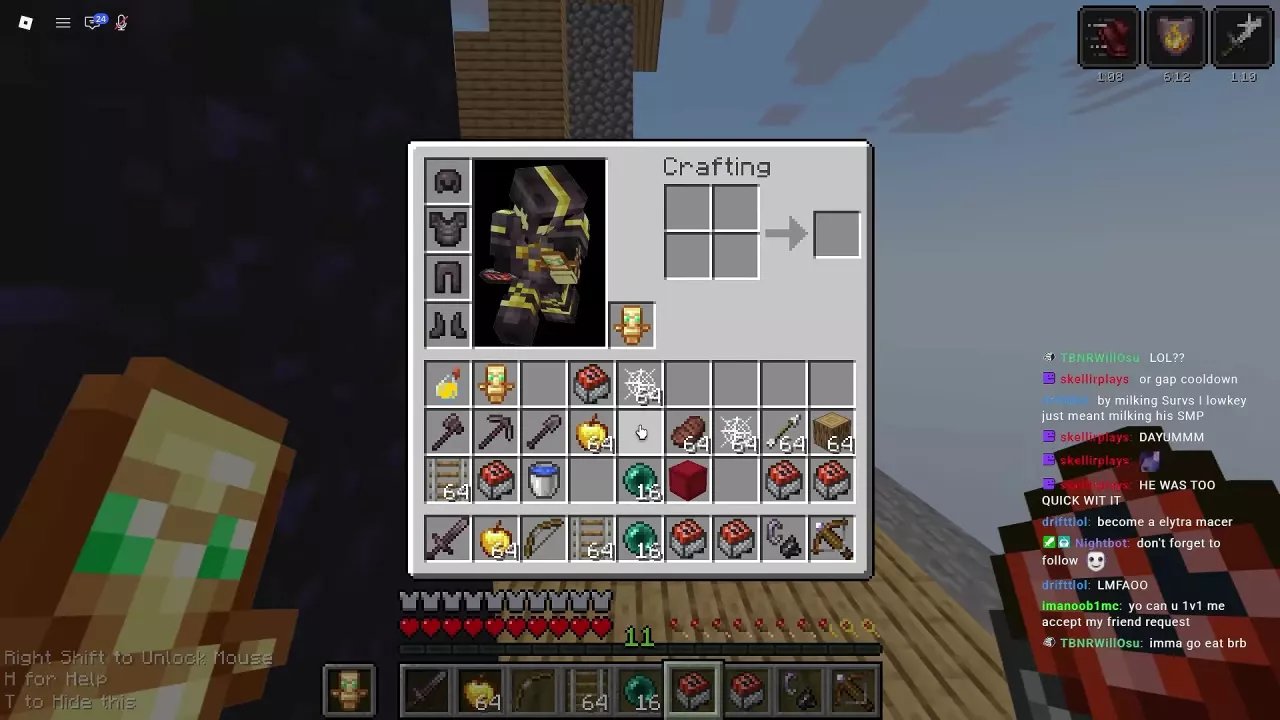
- Use the remaining slots for the next action you plan to take. Move Strength, Swiftness or Fire Resistance potions into the hotbar when preparing them; put Rail and Minecart with TNT there for a cart setup; or add an acquired Wolf Shot so it is ready to select.
- Close the inventory with E. Press 1–9 to select the corresponding hotbar slot, or use your custom bindings.
Keep spare minecarts in storage and move one into the hotbar when you need to replenish the slot. For the rest of the setup, see TNT cart combat and restocking. You can also organize your inventory during Free For All and duels.
Swap or Refill Your Offhand
To swap an item with your offhand, select it and press F with the default PC binding. If you changed the binding, use your assigned Swap Item With Offhand key.
You can also equip a Totem of Undying directly from your inventory:
- Press E and find the offhand slot beside the character preview.
- Move the totem into that slot and close the inventory.
- After the totem activates and is consumed, open the inventory again and move a spare into the empty offhand slot.
Keep a spare totem in storage. If you want both a totem and a shield available, keep the totem in your offhand and the shield in your hotbar so you can select it when needed. For recovery and defensive timing, see healing, potions and defensive items.
Connect Hotbar Slots to Your Keybinds
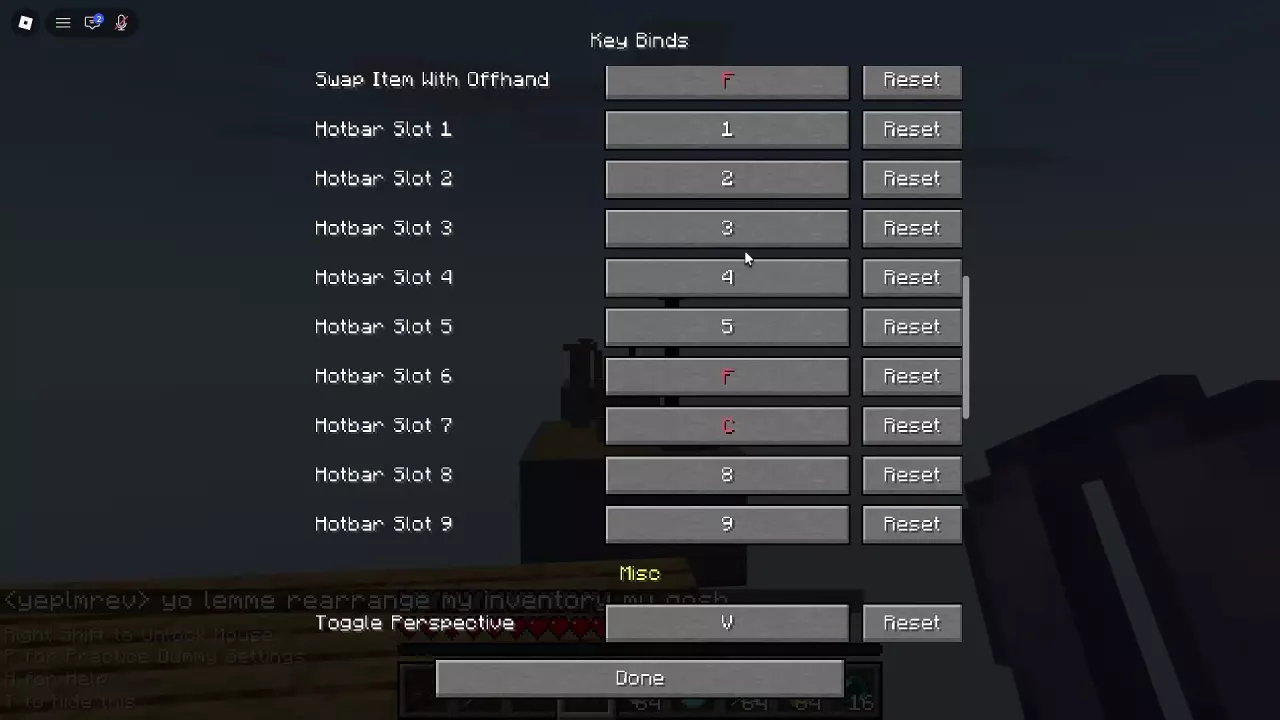
Open Options > Controls to change hotbar bindings. Choose keys that make your most important slots easy to reach, then use those bindings to select the items you arranged. Options also has an Inventory Layout entry.
For the full control list and rebinding instructions, see PC controls and keybinds.